
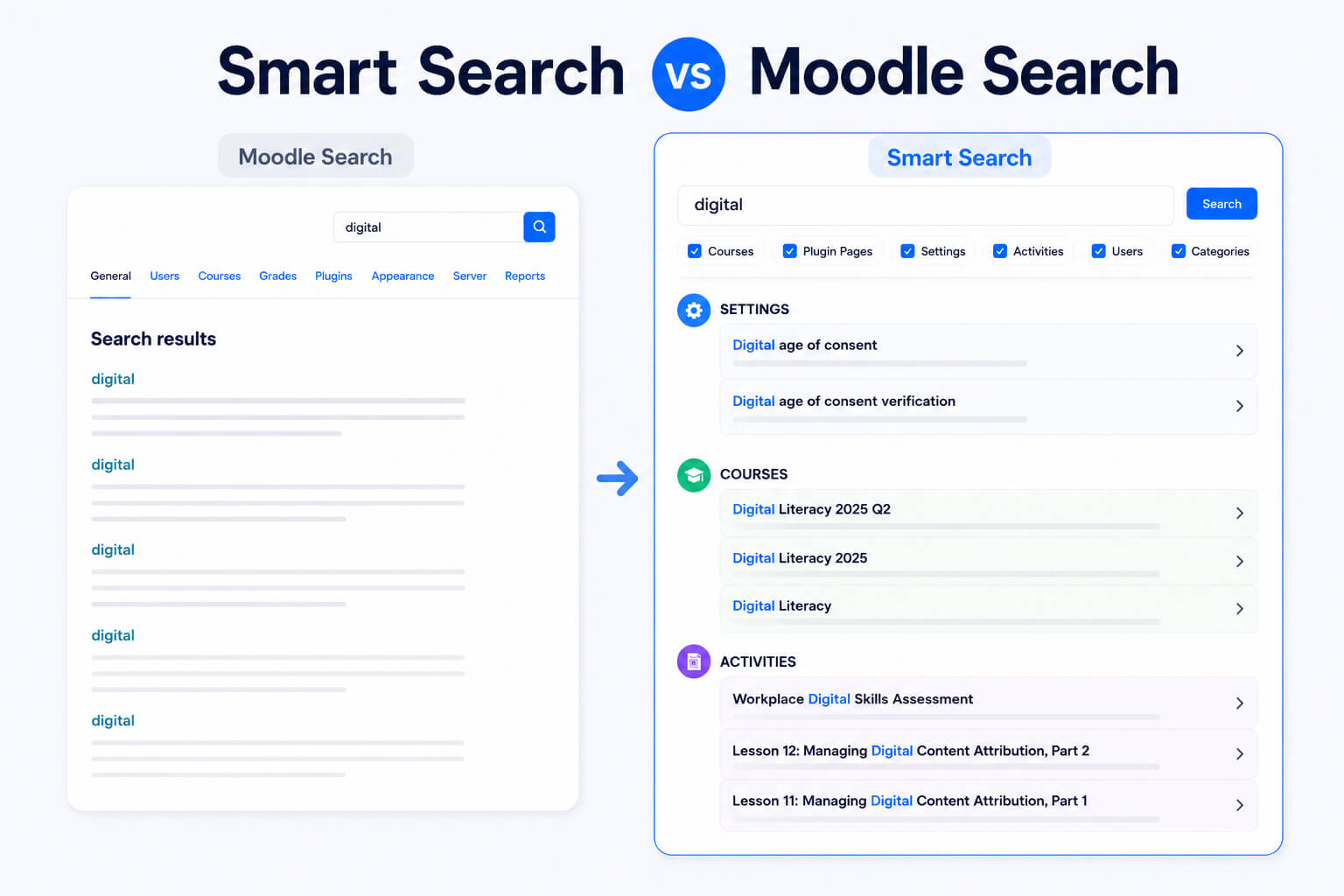
Moodle already includes useful search options. Administrators can search inside Site administration, and Moodle Global Search can help users find searchable content across the LMS when it is enabled and configured.

But some Moodle sites need something more intuitive and navigation-focused.

Administrators, teachers, managers, and students often search Moodle because they want to reach something quickly: a course, an activity, a setting, a plugin page, a user profile, or learning content inside their enrolled courses.

That is where Smart Search fits in. The Smart Search Moodle plugin is designed to make search feel faster and more intuitive for both administrators and students.

Moodle’s built-in search options are useful, but they solve different problems. Site administration search helps administrators find settings. Moodle Global Search helps users search indexed LMS content when configured. Smart Search focuses on a faster, more intuitive search experience for everyday Moodle use.

For administrators, that means direct access to users, courses, activities, settings, plugin pages, and categories.

For students, that means an easier way to find relevant courses, activities, and keyword-based content inside the courses they are enrolled in.

So the question is not really “Which one is better?”

A better question is:

What kind of search experience does your Moodle site need?

If your goal is broader content discovery, Moodle Global Search can be useful. If your goal is faster navigation, clearer grouped results, and direct access to important Moodle areas, Smart Search is built for that workflow.

Moodle’s Site administration search is helpful when an administrator already knows they are looking for a setting.

For example, if an administrator searches for “digital,” Moodle may return matching settings such as privacy-related configuration fields. This is useful because it saves the administrator from manually opening several administration tabs.

However, this search experience is mainly settings-focused. It often takes the administrator into a full settings page where they still need to scan the page, understand the surrounding configuration, and find the exact item they need.

That is fine for configuration work, but it is not always the fastest experience when the goal is broader Moodle search or navigation.

What Moodle Global Search is good at

Moodle Global Search is designed for searching searchable Moodle content. As explained in the Moodle Global Search documentation, its behavior depends on site configuration, permissions, and the selected search engine, helping users find content they are allowed to access.
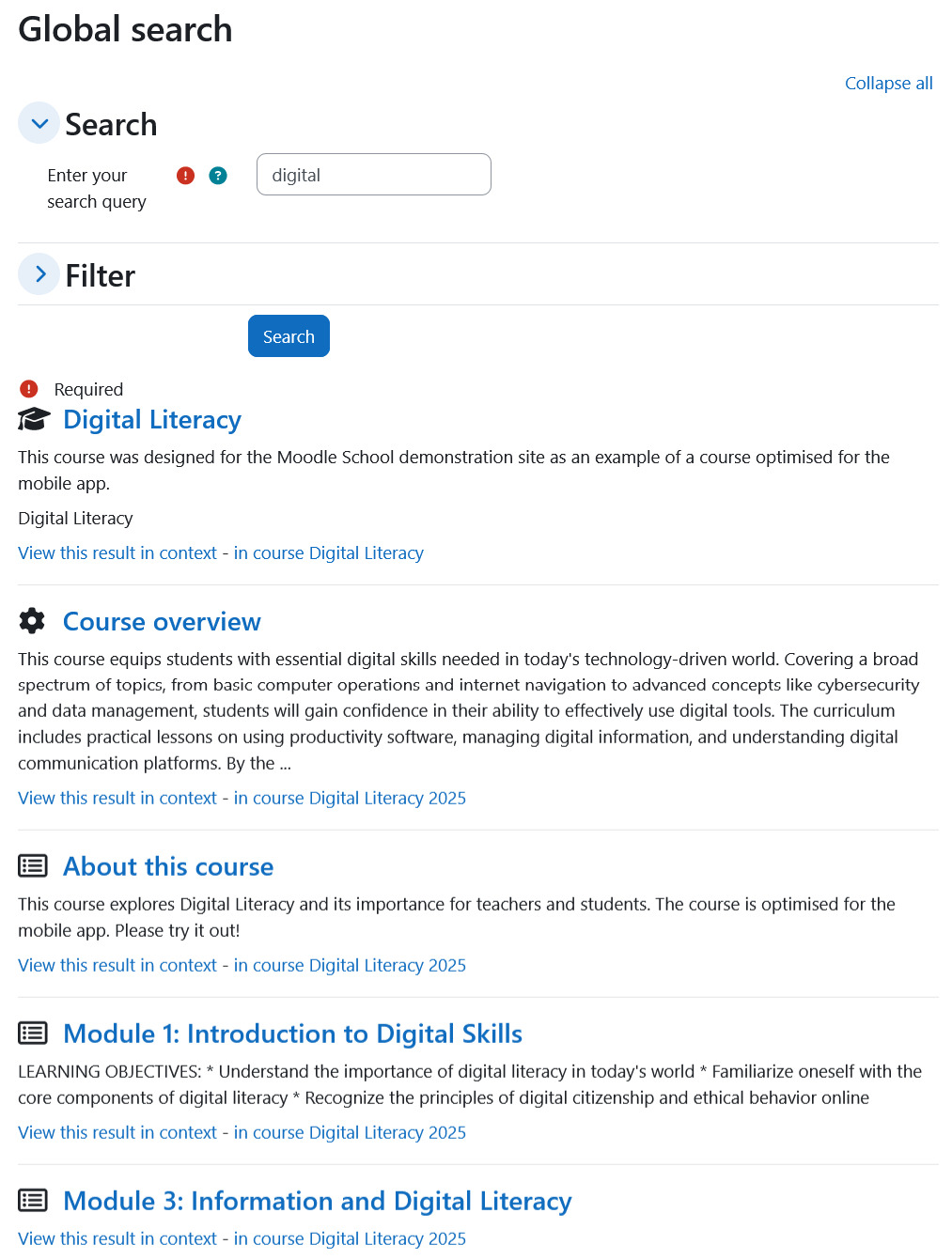
Moodle Site administration search showing matching results for the keyword digital

This can be helpful for:

  • Course content discovery
  • Finding searchable activity content
  • Searching across Moodle areas available to the user
  • Supporting larger sites that need a dedicated content search experience

When configured with Solr, Moodle Global Search can become more powerful. Moodle’s Solr search setup documentation shows that this usually requires server-side setup and technical configuration.

This does not make Solr a bad option. It simply means it is a more technical search setup.

For sites that mainly need fast navigation and intuitive grouped results, Smart Search can be a simpler fit.
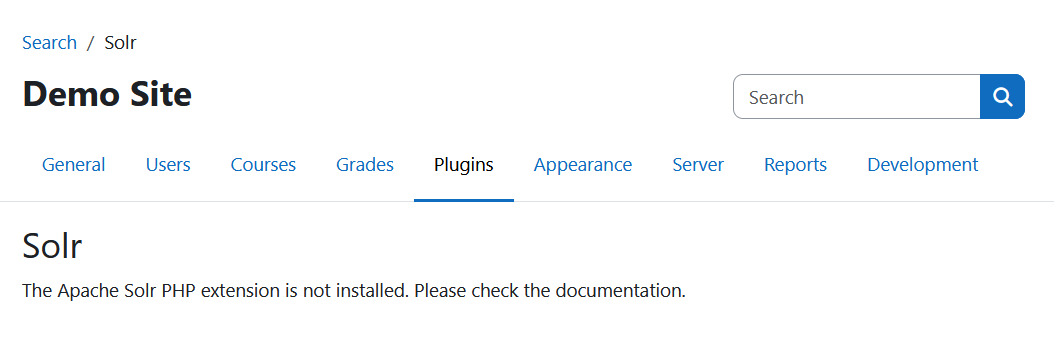
Moodle Solr search setup page showing a missing PHP Solr extension message

Where built-in search may not be enough

Many Moodle searches are not only content searches, they are navigation tasks.

For example, an administrator may want to:

  • Find a user account
  • Open a course
  • Go to a course category
  • Locate a specific activity or resource
  • Jump to a plugin settings page
  • Find a site configuration page
  • Search email addresses when permissions allow it
  • Move quickly between commonly used admin areas

Students may also need a better search experience. For example, a student may want to:

  • Find an enrolled course quickly
  • Search for a lesson, quiz, assignment, or resource
  • Locate an activity using a keyword
  • Return to a commonly used course area
  • Search course-related content without browsing through every section manually

In these cases, the goal is not only to find matching text. The goal is to reach the correct Moodle area quickly.

That is the gap Smart Search is designed to address.

What Smart Search does differently

Smart Search provides a faster search experience for important Moodle areas from one interface.

For administrators, it works like a navigation shortcut across the LMS. They can search users, courses, activities, course categories, site settings, plugin pages, and administration pages.

For students, it provides a simpler way to search relevant learning areas, such as enrolled courses and activities inside those courses. Instead of browsing through course pages manually, students can type a keyword and find matching items more quickly.

Smart Search can include searchable areas such as:

  • Users
  • Courses
  • Activities and resources
  • Course categories
  • Site settings
  • Plugin and administration pages
  • Email addresses, when enabled and permitted

Search results are grouped by category, so users can immediately understand what kind of result they are seeing.

For example, a search for “digital” may return matching settings, courses, and activities in separate sections. The keyword can be highlighted in the results, and each result can provide a direct path to the matching item.

This makes the experience feel more like a modern application search: type, review grouped results, and open the right destination. You can see the main features and setup options on the Smart Search Moodle plugin page.
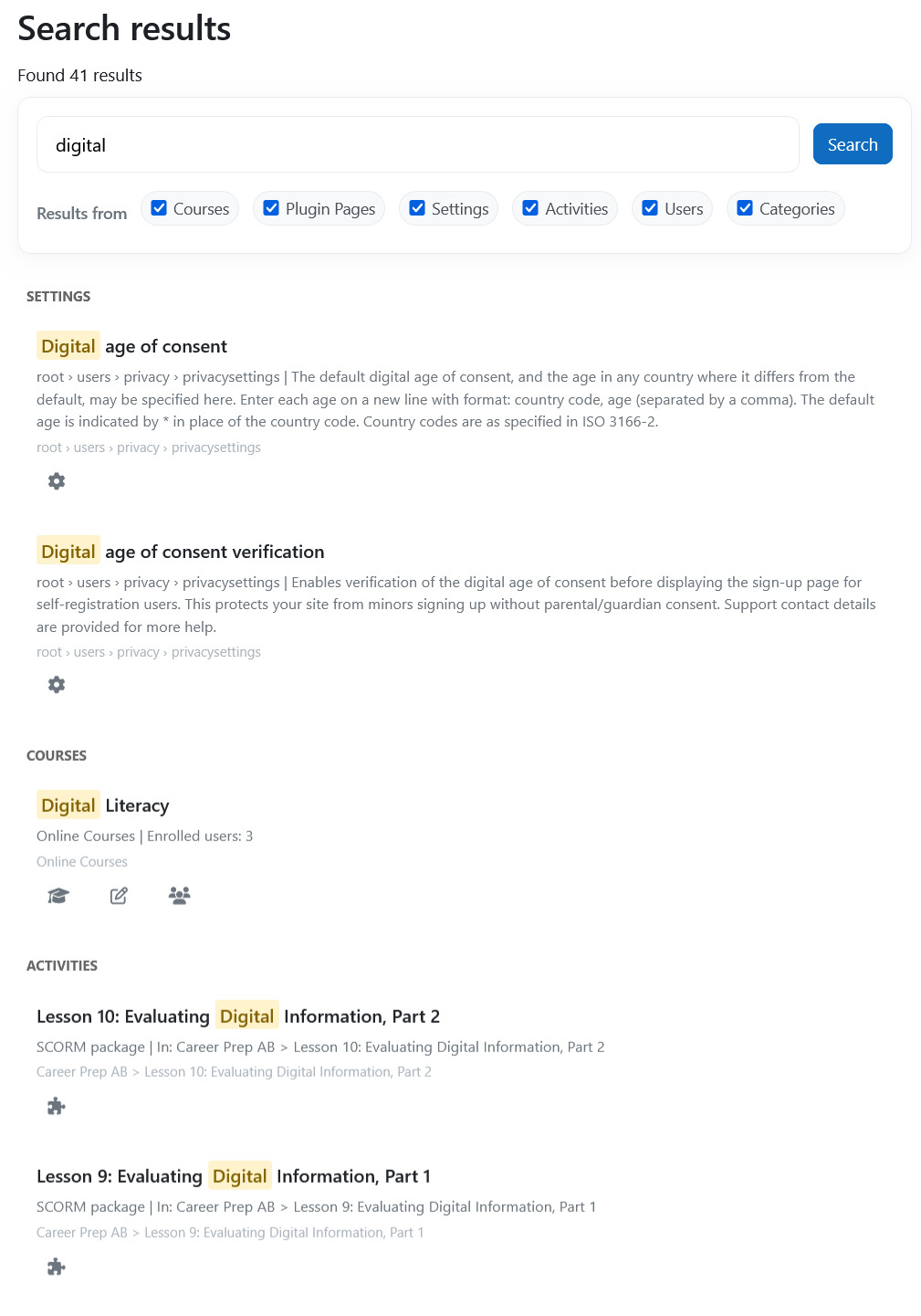
Smart Search Moodle plugin showing grouped results for settings, courses, activities, users, and categories

Why grouped results matter

A single Moodle keyword can match many different things. For example, the word “digital” might appear in:

  • A privacy setting
  • A course title
  • A course category
  • An activity name
  • A plugin page
  • A course resource

Without grouping, results can become harder to scan.

Smart Search groups matching results into clear sections such as:

  • Settings
  • Courses
  • Activities
  • Users
  • Categories
  • Plugin pages

This helps users quickly decide which result is relevant. Users can identify whether a result is a setting, course, user, or plugin page. Students can identify whether a result is a course or activity from their enrolled learning areas. Instead of seeing a long mixed list, users can identify the result type first, then open the exact item they need.

Configurable search categories

Different Moodle sites need different search behavior. A small training site may only want course and activity search. A larger LMS may want administrators to search users, settings, plugin pages, course categories, and email addresses.

Smart Search allows administrators to enable or disable search categories such as:

  • User search
  • Email address search
  • Course search
  • Activity and resource search
  • Site settings search
  • Plugin and admin pages search
  • Course category search

This makes the search experience more focused.

If a category is not useful for a site, it can be disabled. If administrators need a wider search scope, more categories can be enabled.
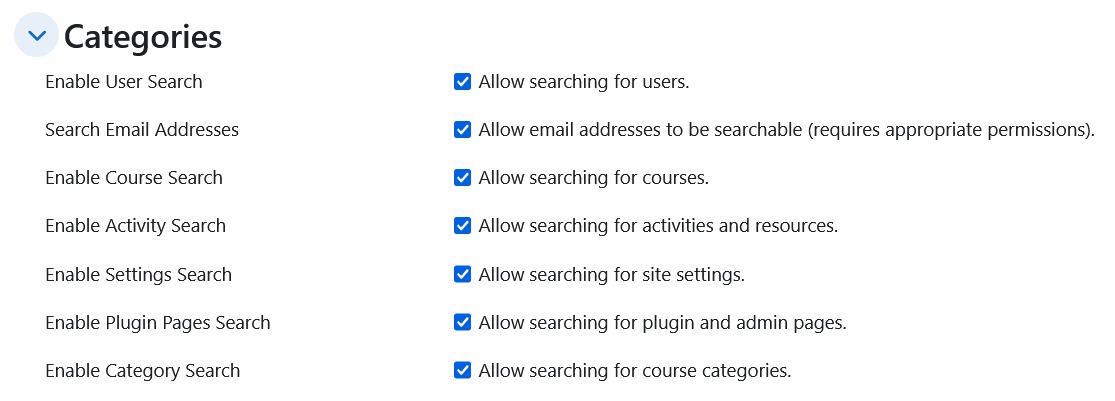
Smart Search settings showing configurable search categories for users, courses, activities, settings, plugin pages, and categories

Permission-aware results

Search should never become a shortcut around Moodle permissions. Smart Search applies permission checks before showing results. This means administrators, teachers, managers, and students do not all see the same search results. Each user sees only the items their Moodle role and permissions allow them to access.

For example, a site administrator may see users, settings, plugin pages, courses, categories, and activities. A student may only see courses and activities related to their enrollment.

This keeps Smart Search useful without turning search into a shortcut around Moodle permissions.

Search analytics for better LMS decisions

Smart Search can also record search activity for analytics.

The analytics page can help administrators understand how search is being used across the site. It may show:

  • Total searches
  • Frequently searched terms
  • Search trends over time

This can be useful beyond search itself.

If many users repeatedly search for the same course, setting, activity, or page, it may suggest that the item should be easier to access from the dashboard, navigation menu, documentation, or course layout.

For administrators, this can reveal which admin areas are frequently needed.

For students, it can reveal what learning content or course areas they are trying to find.

Smart Search logs search terms for analytics, but it is designed not to store personally identifiable information such as user IDs, email addresses, names, or account details. If analytics are not required, administrators can disable logging.

Frequently asked questions

Is Smart Search a replacement for Moodle Global Search?

Not exactly. The Smart Search Moodle plugin is not a full replacement for Moodle Global Search. It focuses on faster navigation and grouped, permission-aware results.

Can students use Smart Search?

Yes. Smart Search can be available to students, depending on site configuration and permissions. Students can search relevant courses, activities, and keyword-based content from their enrolled courses.

Can administrators control what Smart Search includes?

Yes. Administrators can enable or disable search categories such as users, courses, activities, settings, plugin pages, course categories, and email address search.

Does Smart Search respect Moodle permissions?

Yes. Smart Search applies permission checks before showing results. Users only see results they are allowed to access.

Is Solr required for Smart Search?

No. Smart Search is designed as its own Moodle search and navigation experience. Solr is commonly associated with Moodle Global Search, especially for more advanced search setups.

Related resources

Summary

Moodle has useful built-in search options, and each has its place. Site administration search is helpful for finding settings. Moodle Global Search is useful for broader content discovery when configured. Solr can make Global Search more powerful, but it may require server-level setup.

Smart Search focuses on a different need: faster, more intuitive Moodle search and navigation. For administrators, it reduces the time spent moving through menus to find users, courses, activities, settings, plugin pages, and categories. For students, it helps them find relevant courses and activities from their enrolled courses more easily.

If your Moodle site feels harder to navigate as it grows, Smart Search can make the experience faster for both site teams and students.

To explore more, visit the Smart Search Moodle plugin page.

Want to Make Your Moodle Site Better?

Supercharge your Moodle site with plugins and fixes that boost engagement, usability, and admin efficiency — all designed to work natively inside Moodle.

Get updates, fixes, and best practices right in your inbox.

Subscription Form

Table of Contents

Moodle already includes useful search options. Administrators can search inside Site administration, and Moodle Global Search can help users find searchable content across the LMS when it is enabled and configured.

But some Moodle sites need something more intuitive and navigation-focused.

Administrators, teachers, managers, and students often search Moodle because they want to reach something quickly: a course, an activity, a setting, a plugin page, a user profile, or learning content inside their enrolled courses.

That is where Smart Search fits in. The Smart Search Moodle plugin is designed to make search feel faster and more intuitive for both administrators and students.

Moodle’s built-in search options are useful, but they solve different problems. Site administration search helps administrators find settings. Moodle Global Search helps users search indexed LMS content when configured. Smart Search focuses on a faster, more intuitive search experience for everyday Moodle use.

For administrators, that means direct access to users, courses, activities, settings, plugin pages, and categories.

For students, that means an easier way to find relevant courses, activities, and keyword-based content inside the courses they are enrolled in.

So the question is not really “Which one is better?”

A better question is:

What kind of search experience does your Moodle site need?

If your goal is broader content discovery, Moodle Global Search can be useful. If your goal is faster navigation, clearer grouped results, and direct access to important Moodle areas, Smart Search is built for that workflow.

Moodle’s Site administration search is helpful when an administrator already knows they are looking for a setting.

For example, if an administrator searches for “digital,” Moodle may return matching settings such as privacy-related configuration fields. This is useful because it saves the administrator from manually opening several administration tabs.

However, this search experience is mainly settings-focused. It often takes the administrator into a full settings page where they still need to scan the page, understand the surrounding configuration, and find the exact item they need.

That is fine for configuration work, but it is not always the fastest experience when the goal is broader Moodle search or navigation.

What Moodle Global Search is good at

Moodle Global Search is designed for searching searchable Moodle content. As explained in the Moodle Global Search documentation, its behavior depends on site configuration, permissions, and the selected search engine, helping users find content they are allowed to access.

Moodle Site administration search showing matching results for the keyword digital

This can be helpful for:

  • Course content discovery
  • Finding searchable activity content
  • Searching across Moodle areas available to the user
  • Supporting larger sites that need a dedicated content search experience

When configured with Solr, Moodle Global Search can become more powerful. Moodle’s Solr search setup documentation shows that this usually requires server-side setup and technical configuration.

This does not make Solr a bad option. It simply means it is a more technical search setup.

For sites that mainly need fast navigation and intuitive grouped results, Smart Search can be a simpler fit.

Moodle Solr search setup page showing a missing PHP Solr extension message

Where built-in search may not be enough

Many Moodle searches are not only content searches, they are navigation tasks.

For example, an administrator may want to:

  • Find a user account
  • Open a course
  • Go to a course category
  • Locate a specific activity or resource
  • Jump to a plugin settings page
  • Find a site configuration page
  • Search email addresses when permissions allow it
  • Move quickly between commonly used admin areas

Students may also need a better search experience. For example, a student may want to:

  • Find an enrolled course quickly
  • Search for a lesson, quiz, assignment, or resource
  • Locate an activity using a keyword
  • Return to a commonly used course area
  • Search course-related content without browsing through every section manually

In these cases, the goal is not only to find matching text. The goal is to reach the correct Moodle area quickly.

That is the gap Smart Search is designed to address.

What Smart Search does differently

Smart Search provides a faster search experience for important Moodle areas from one interface.

For administrators, it works like a navigation shortcut across the LMS. They can search users, courses, activities, course categories, site settings, plugin pages, and administration pages.

For students, it provides a simpler way to search relevant learning areas, such as enrolled courses and activities inside those courses. Instead of browsing through course pages manually, students can type a keyword and find matching items more quickly.

Smart Search can include searchable areas such as:

  • Users
  • Courses
  • Activities and resources
  • Course categories
  • Site settings
  • Plugin and administration pages
  • Email addresses, when enabled and permitted

Search results are grouped by category, so users can immediately understand what kind of result they are seeing.

For example, a search for “digital” may return matching settings, courses, and activities in separate sections. The keyword can be highlighted in the results, and each result can provide a direct path to the matching item.

This makes the experience feel more like a modern application search: type, review grouped results, and open the right destination. You can see the main features and setup options on the Smart Search Moodle plugin page.

Smart Search Moodle plugin showing grouped results for settings, courses, activities, users, and categories

Why grouped results matter

A single Moodle keyword can match many different things. For example, the word “digital” might appear in:

  • A privacy setting
  • A course title
  • A course category
  • An activity name
  • A plugin page
  • A course resource

Without grouping, results can become harder to scan.

Smart Search groups matching results into clear sections such as:

  • Settings
  • Courses
  • Activities
  • Users
  • Categories
  • Plugin pages

This helps users quickly decide which result is relevant. Users can identify whether a result is a setting, course, user, or plugin page. Students can identify whether a result is a course or activity from their enrolled learning areas. Instead of seeing a long mixed list, users can identify the result type first, then open the exact item they need.

Configurable search categories

Different Moodle sites need different search behavior. A small training site may only want course and activity search. A larger LMS may want administrators to search users, settings, plugin pages, course categories, and email addresses.

Smart Search allows administrators to enable or disable search categories such as:

  • User search
  • Email address search
  • Course search
  • Activity and resource search
  • Site settings search
  • Plugin and admin pages search
  • Course category search

This makes the search experience more focused.

If a category is not useful for a site, it can be disabled. If administrators need a wider search scope, more categories can be enabled.

Smart Search settings showing configurable search categories for users, courses, activities, settings, plugin pages, and categories

Permission-aware results

Search should never become a shortcut around Moodle permissions. Smart Search applies permission checks before showing results. This means administrators, teachers, managers, and students do not all see the same search results. Each user sees only the items their Moodle role and permissions allow them to access.

For example, a site administrator may see users, settings, plugin pages, courses, categories, and activities. A student may only see courses and activities related to their enrollment.

This keeps Smart Search useful without turning search into a shortcut around Moodle permissions.

Search analytics for better LMS decisions

Smart Search can also record search activity for analytics.

The analytics page can help administrators understand how search is being used across the site. It may show:

  • Total searches
  • Frequently searched terms
  • Search trends over time

This can be useful beyond search itself.

If many users repeatedly search for the same course, setting, activity, or page, it may suggest that the item should be easier to access from the dashboard, navigation menu, documentation, or course layout.

For administrators, this can reveal which admin areas are frequently needed.

For students, it can reveal what learning content or course areas they are trying to find.

Smart Search logs search terms for analytics, but it is designed not to store personally identifiable information such as user IDs, email addresses, names, or account details. If analytics are not required, administrators can disable logging.

Frequently asked questions

Is Smart Search a replacement for Moodle Global Search?

Not exactly. The Smart Search Moodle plugin is not a full replacement for Moodle Global Search. It focuses on faster navigation and grouped, permission-aware results.

Can students use Smart Search?

Yes. Smart Search can be available to students, depending on site configuration and permissions. Students can search relevant courses, activities, and keyword-based content from their enrolled courses.

Can administrators control what Smart Search includes?

Yes. Administrators can enable or disable search categories such as users, courses, activities, settings, plugin pages, course categories, and email address search.

Does Smart Search respect Moodle permissions?

Yes. Smart Search applies permission checks before showing results. Users only see results they are allowed to access.

Is Solr required for Smart Search?

No. Smart Search is designed as its own Moodle search and navigation experience. Solr is commonly associated with Moodle Global Search, especially for more advanced search setups.

Related resources

Summary

Moodle has useful built-in search options, and each has its place. Site administration search is helpful for finding settings. Moodle Global Search is useful for broader content discovery when configured. Solr can make Global Search more powerful, but it may require server-level setup.

Smart Search focuses on a different need: faster, more intuitive Moodle search and navigation. For administrators, it reduces the time spent moving through menus to find users, courses, activities, settings, plugin pages, and categories. For students, it helps them find relevant courses and activities from their enrolled courses more easily.

If your Moodle site feels harder to navigate as it grows, Smart Search can make the experience faster for both site teams and students.

To explore more, visit the Smart Search Moodle plugin page.