
Overview #
Smart Search provides a fast way for administrators to locate important items across the Moodle site from a single search interface.
Instead of navigating through multiple menus/pages, administrators can type a keyword and quickly access matching results such as users, courses, activities, site settings, and plugin pages.
Smart Search is designed primarily for administrative efficiency, helping site administrators and managers find information and configuration pages without navigating through complex menus.
Typical use cases include:
- Finding a user account quickly
- Locating a course without browsing categories
- Jumping directly to plugin settings
- Accessing specific activities or resources
- Navigating to site configuration pages
Search results are grouped by category, making it easier to identify the type of item returned by the query.
How Smart Search Works #
Smart Search works by indexing searchable information across the Moodle site and returning relevant results when a query is entered.
The system performs three main steps: indexing, query processing, and results delivery.
Moodle Data
     │
     ▼
Search Index
     │
     ▼
Search Query
     │
     ▼
Filtered Results
1. Indexing
Smart Search gathers searchable data from different parts of the Moodle site, including:
- Users
- Courses
- Activities and resources
- Course categories
- Site settings
- Plugin and administration pages
This data is organized into an internal search index that allows results to be returned quickly.
2. Query Processing
When a user enters a search term, Smart Search:
- Interprets the search text
- Searches the indexed data
- Filters results based on enabled search categories
- Applies permission checks
This ensures users only see results they are allowed to access.
3. Results Display
Matching results are grouped by category so administrators can quickly identify where the result belongs.
Examples of grouped results may include:
- Users
- Courses
- Activities
- Site settings
- Plugin pages
Smart Search Settings #
Administrators can configure Smart Search behavior from the plugin settings page.
1. Enabling Smart Search

Administrators can enable Smart Search from the Site admin page.
- Navigate to Site administration
- Open Plugins
- Select Smart Search
- Enable the Smart Search feature
- Save the settings
Once enabled, the Smart Search interface becomes available in the Moodle navigation area.
2. Search Categories
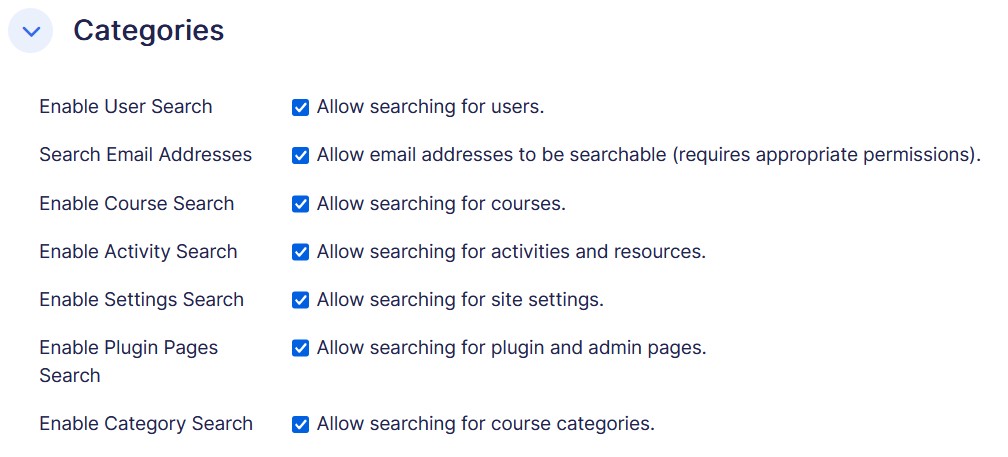
Administrators can control which types of data Smart Search will include in search results.
Available categories include:
- Users
- Courses
- Activities and resources
- Site settings
- Course categories
- Plugin and administration pages
- Email addresses (if permissions allow)
Enabling more categories increases the scope of search results, while disabling categories can make results more focused.
3. Analytics Logging
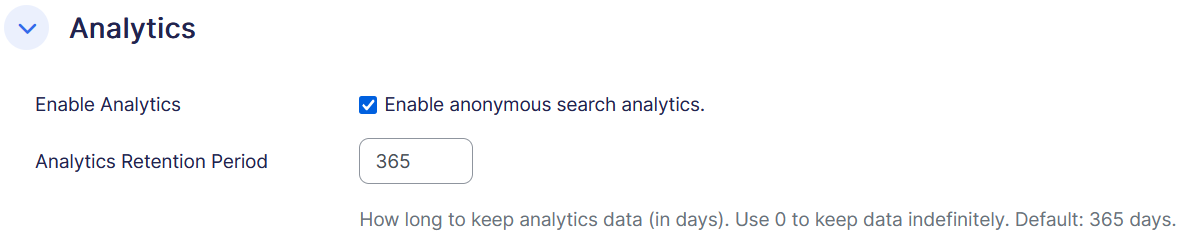
Smart Search can record search activity to help administrators understand how the feature is used. The system logs search queries and stores them for analysis. Logging can also be disabled if analytics are not required.
Smart Search Analytics #
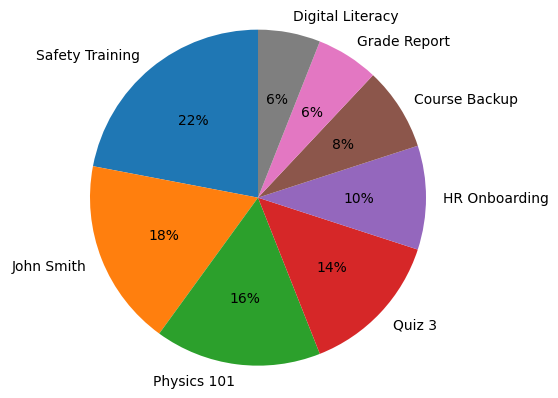
Smart Search includes a built-in analytics page that provides insight into how the search feature is being used across the site.
The analytics page typically shows:
- Total number of searches performed
- Most frequently used search terms
- Search trends over time
This information helps administrators understand what users are trying to find and whether the current site structure supports those needs.
By default, search analytics are stored for 365 days, although administrators can disable analytics collection if needed.
Privacy and Data Logging #
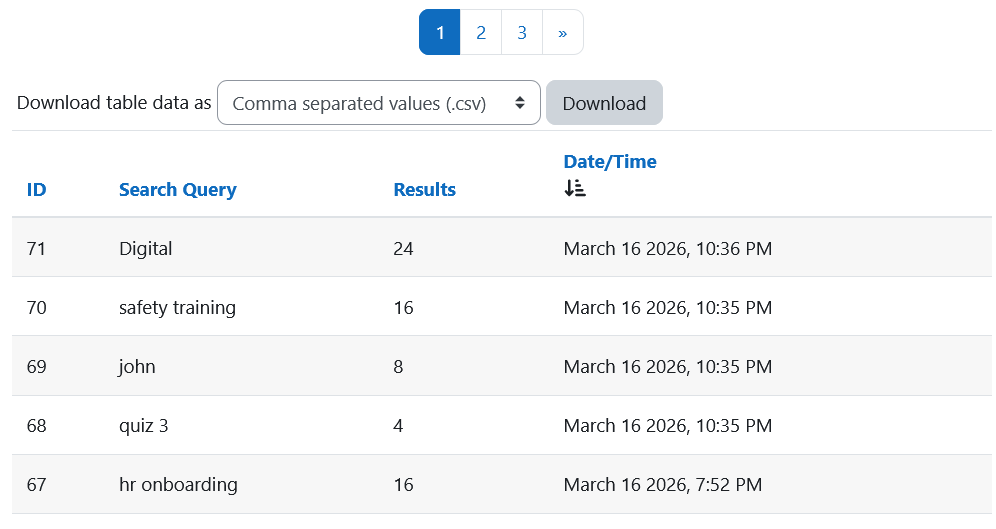
Smart Search records search queries for analytics purposes, but it is designed to respect user privacy.
The system logs search terms only and does not store personally identifiable information such as:
- User IDs
- Email addresses
- Names
- Account details
This allows administrators to analyze search behavior while maintaining user privacy.
If privacy requirements require stricter controls, administrators can disable search analytics entirely from the Smart Search settings page.

