
This article explains the global (site-wide) settings available for the Video Lesson Activity and how administrators can control default behavior, enforce rules, and standardize video usage across the site.
What are Video Lesson global settings? #
Video Lesson global settings are site-level configuration options available to administrators.
These settings allow you to:
- Define default values for new Video Lesson activities
- Enforce site-wide behavior regardless of activity settings
- Control how students interact with video content
- Standardize compliance and learning policies across courses
Global settings apply at the Moodle site level, not per course.
Where to find global settings #
Video Lesson global settings are available at:
Site administration → Plugins → Activity modules → Video Lesson Settings
Only users with administrator permissions can access these settings.
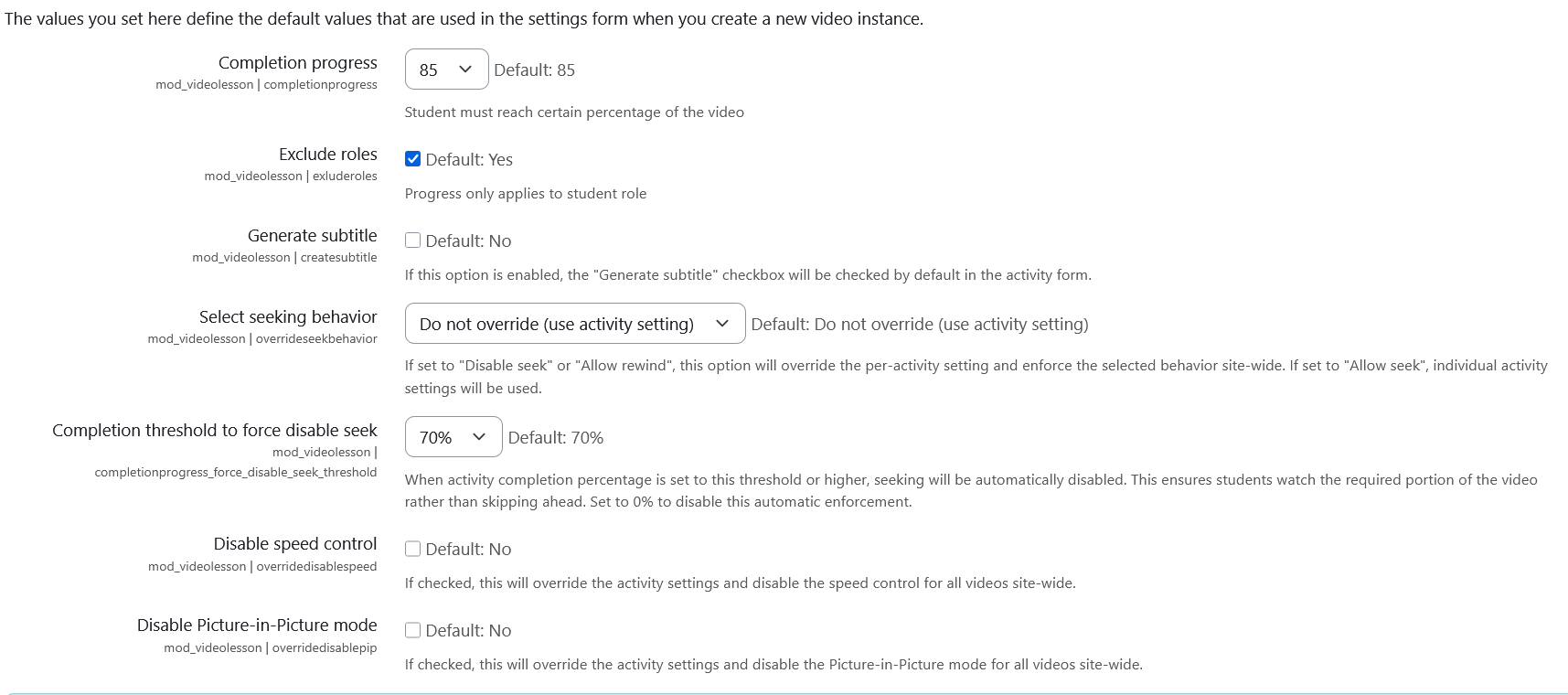
Default values vs enforced overrides #
Global settings fall into two categories:
- Default values
These are used as pre-filled values when a new Video Lesson activity is created. Teachers can change them at the activity level. - Enforced overrides
These force a specific behavior site-wide. Teachers cannot override these settings inside individual activities.
Understanding the difference is critical when managing large Moodle sites.
Global seeking behavior override #
Administrators can enforce a site-wide seeking policy using the Select seeking behavior setting.
Available options include:
- Do not override (use activity setting)
- Allow seek
- Disable seek
- Disable seeking forward, allow rewind
If set to anything other than Do not override, the selected behavior is enforced across all Video Lesson activities and activity-level settings are ignored.
This is useful when a consistent viewing policy must be applied across all courses.
Automatic seek disabling based on completion percentage #
Video Lesson includes an automatic enforcement rule tied to completion requirements.
When the global completion threshold to force disable seek is configured:
- If an activity’s required watch percentage is equal to or higher than the threshold
- Seeking is automatically disabled for that activity
Example:
- Global threshold: 70%
- Activity requires: 85% watch
- Result: Seeking is automatically disabled
To disable this behavior entirely, the threshold can be set to 0%.
This ensures students cannot skip content in activities that require high completion accuracy.
Disable playback speed control (site-wide) #
Administrators can globally disable playback speed controls.
When enabled:
- Students cannot change playback speed (for example, 1.25× or 2×)
- The restriction applies to all Video Lesson activities
- Activity-level speed settings are ignored
This is recommended for compliance training, safety instruction, or time-sensitive content.
Disable Picture-in-Picture (PiP) mode (site-wide) #
Administrators can globally disable Picture-in-Picture mode.
When enabled:
- Students cannot detach the video into a floating window
- Videos must be watched within the activity page
This helps reduce distractions and ensures students remain focused within the learning context.
Role-based enforcement #
By default, video progress tracking and enforcement apply only to the Student role.
Teachers, managers, and administrators are excluded to prevent accidental completion during testing, previews, or course setup.
What global settings do not do #
Global settings do not:
- Modify existing completion data
- Change historical analytics
- Affect non-Video Lesson activities
- Rewrite course-level configuration unless explicitly enforced
They are designed to guide and enforce behavior, not retroactively alter content.
Recommended global configurations #
Compliance or certification sites
- Global seek override: Disable seek
- Completion threshold to force disable seek: 70% or higher
- Disable playback speed control: Enabled
- Disable Picture-in-Picture: Enabled
Mixed academic environments
- Global seek override: Do not override
- Completion threshold enforcement: Optional
- Playback speed and PiP controls: Optional
Flexible learning platforms
- Global seek override: Do not override
- Completion enforcement: Activity-level only
Important notes #
- Global settings affect new activities immediately
- Enforced overrides apply site-wide
- Teachers should be informed of enforced policies
- External video sources may have provider-level limitations
Summary #
Video Lesson global settings give administrators centralized control over how video lessons behave across the site.
By combining defaults and enforced overrides, administrators can standardize student experience, enforce compliance rules, and reduce configuration errors across courses.

