
Teachers can customize the Course Completion Page for an individual course without changing the site-wide defaults.
Course-level settings allow you to enable or disable the completion page, customize the completion message, choose a Moodle Feedback activity, select suggested courses, and control which sections appear for Students.
Access the course settings #
Open the course and go to: Course → Settings → Course Completion Page
The available options inherit the Administrator settings unless you choose a course-specific override.
How course-level overrides work #
Most Course Completion Page settings use the same three options:
- Use site default – Uses the value configured by the Administrator.
- Enabled – Turns the feature or section on for this course.
- Disabled – Turns the feature or section off for this course.
This allows a course to follow the site-wide configuration while still overriding individual sections where needed.
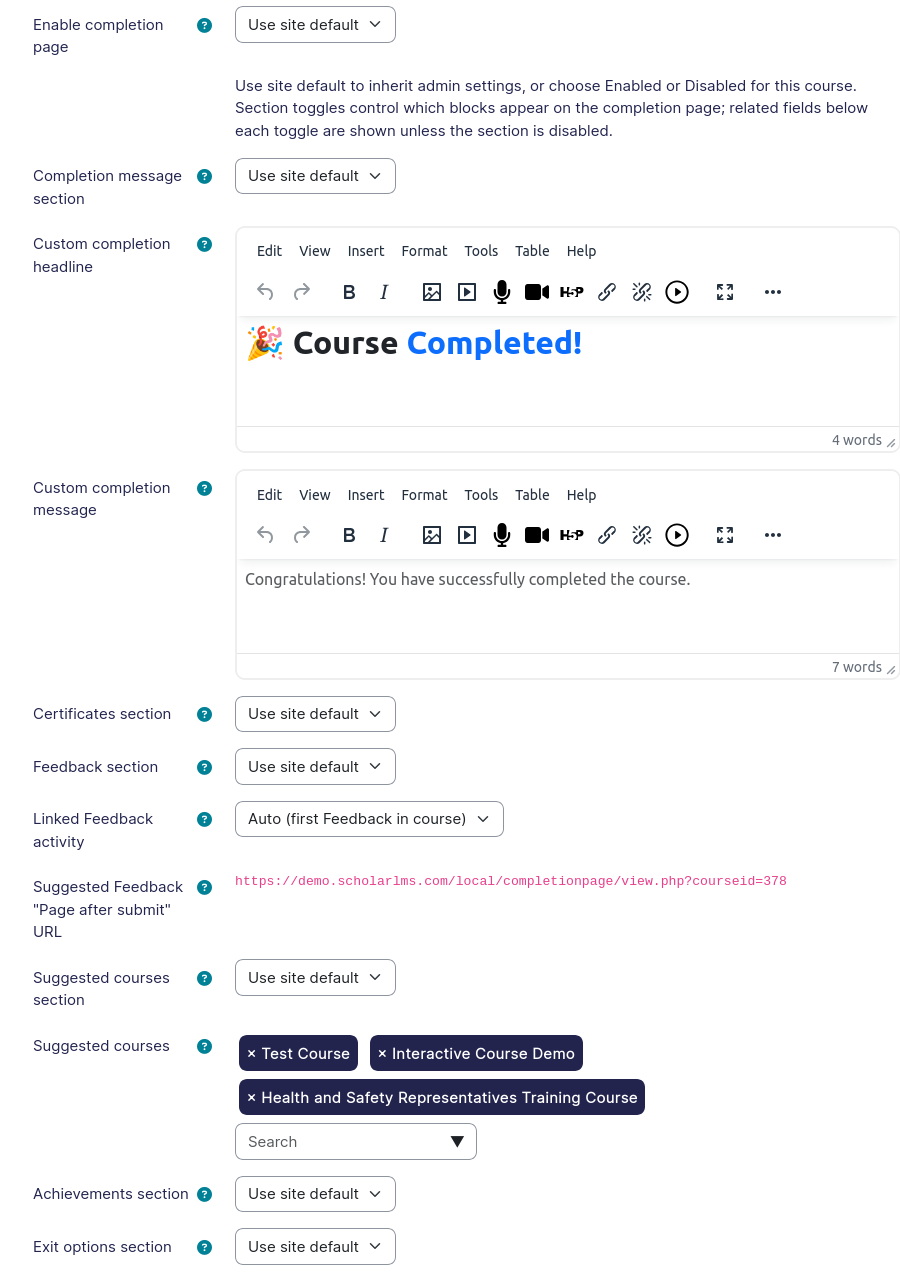
Enable completion page #
Use Enable completion page to control whether the Course Completion Page is available for this course.
Select Use site default to inherit the Administrator setting, or choose Enabled or Disabled for this course.
Completion message section #
Use Completion message section to control whether the completion message is displayed.
When enabled, you can also customize the message shown to Students.
Custom completion headline
Enter the headline displayed at the top of the Course Completion Page.
For example: Course Completed!
If no course-specific headline is entered, the default behavior is used.
Custom completion message
Enter the message shown below the completion headline.
For example: Congratulations! You have successfully completed the course.
The editor supports Moodle’s standard text formatting options.
Certificates section #
Use Certificates section to control whether the certificate area is available for this course.
The section is shown to a Student only when a supported certificate has actually been issued.
Course Completion Page currently supports Custom certificate (mod_customcert).
See Certificates on the Course Completion Page.
Feedback section #
Use Feedback section to control whether Students are offered a Feedback action after course completion.
When enabled, choose the Moodle Feedback activity that should be linked from the completion page.
Linked Feedback activity
The Linked Feedback activity setting determines which Feedback activity is used.
You can choose a specific Feedback activity or use the automatic option:
Auto (first Feedback in course)
When automatic selection is used, the plugin links to the first available Feedback activity in the course.
See Using Moodle Feedback with Course Completion Page.
Suggested courses section #
Use Suggested courses section to control whether recommended courses are displayed after completion.
Select Use site default, Enabled, or Disabled as needed.
Suggested courses
Use the course selector to manually choose the courses you want Students to see next.
Selected courses are shown on the Course Completion Page as recommendations.
If no courses are selected manually, the plugin can show up to three visible courses from the same course category.
See Suggested Courses After Completion.
Achievements section #
Use Achievements section to control whether completion information such as course grade, completion date, time spent, and badges is displayed.
The plugin only shows items that are available for the Student.
See Achievements and Time Spent.
Exit options section #
Use Exit options section to control whether navigation actions appear at the bottom of the Course Completion Page.
When enabled, Students can be given options such as:
- Dashboard
- My courses
- Browse courses
See How the Student Completion Page Works.
Saving the course settings #
After making your changes, save the course settings. The course-specific configuration will then be used for Students completing this course.
Any setting left as Use site default continues to follow the Administrator configuration.

