
Course Completion Page provides Students with a dedicated end-of-course experience after they have completed a course in Moodle.
Instead of the learning journey simply ending after the final requirement, the completion page gives Students a clear confirmation that the course is complete, shows relevant achievements, and provides useful next steps.
Course Completion Page does not determine whether a course is complete. It uses Moodle’s existing course completion system and appears only after Moodle has marked the course as completed.
Why use a Course Completion Page? #
Moodle can track whether a Student has completed a course, but the end of the course may not always feel like a distinct final step.
Course Completion Page provides that final experience by giving Students:
- Clear confirmation that the course has been completed
- A summary of relevant achievements
- Access to an issued certificate
- An opportunity to provide feedback
- Recommendations for further learning
- Navigation to other areas of the Moodle site
The page is intended as a post-completion experience rather than a replacement for Moodle’s course completion system.
When does the completion page appear? #
The completion page becomes available only after Moodle reports that the Student has completed the course.
The course must therefore have Course completion enabled and have valid completion criteria configured.
Once those requirements have been satisfied, a Finish course action can be presented at the end of the course journey. Selecting it opens the Course Completion Page.
Reaching the completion page does not itself complete the course. Moodle must already consider the course complete.
What can Students see? #
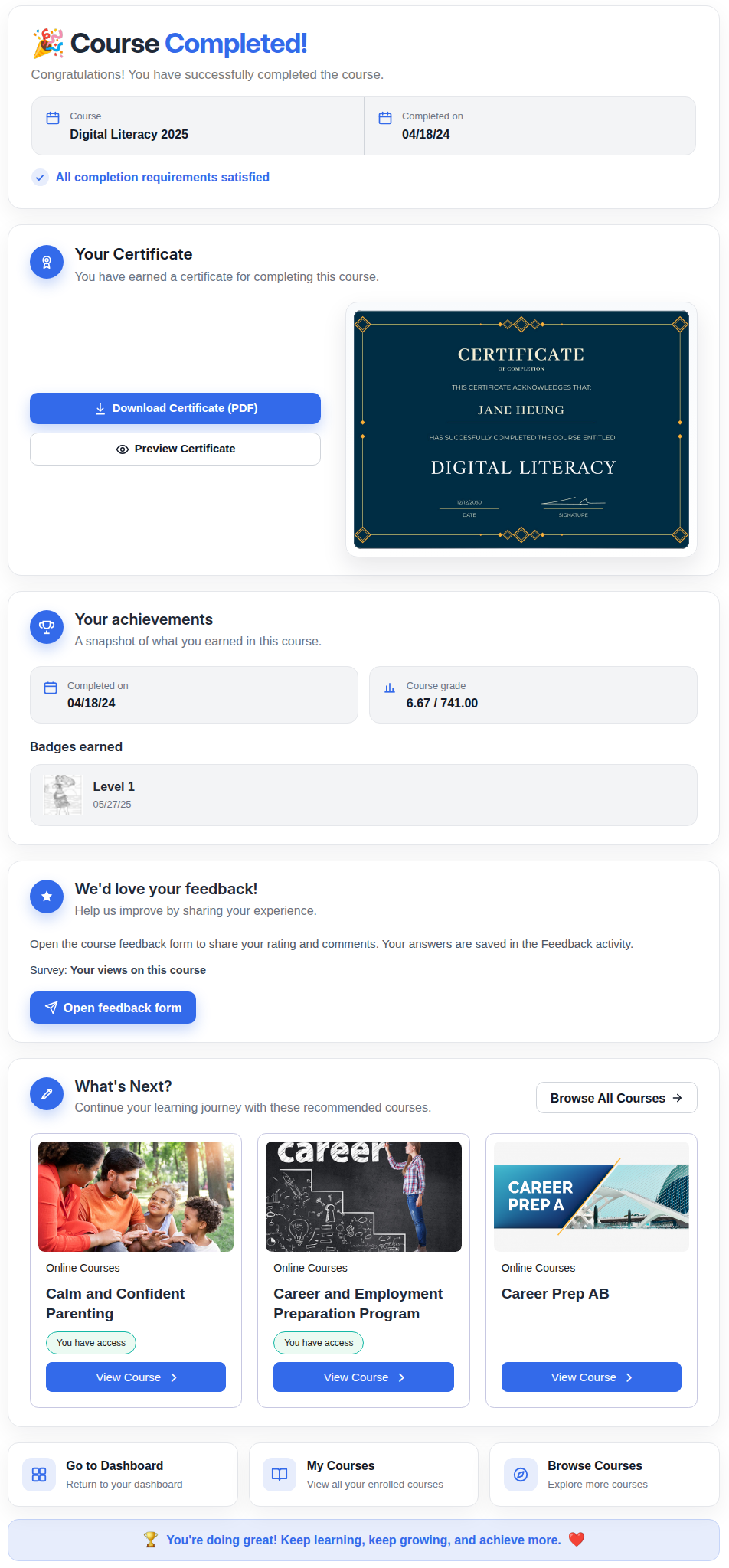
Completion message
Shows a clear confirmation that the course has been completed, along with the course name and completion date. Teachers can use the site default message or customize the headline and message for an individual course.
Certificate
Displays an issued Custom certificate (mod_customcert) with options to preview or download it. If no certificate has been issued, this section is not shown.
Achievements
Shows available completion information such as the completion date, Moodle course grade, time spent, and earned badges. Each item is displayed only when the relevant data exists.
Feedback
Links Students to a selected Moodle Feedback activity so they can submit feedback after completing the course. The response process continues through Moodle’s standard Feedback activity.
Suggested courses
Shows recommended courses that Students can explore after completion. Teachers can select courses manually, or the plugin can show up to three visible courses from the same course category.
Exit options
Provides simple navigation back into the Moodle site, including Dashboard, My courses, and Browse courses. These options help Students continue from the completion page without creating a separate navigation workflow.
Site-wide defaults and course-level control #
Course Completion Page uses two levels of configuration.
Administrator settings
Administrators define the default Course Completion Page behaviour for the site.
These defaults control whether the feature is enabled and which sections are normally displayed.
Course settings
Teachers can use the site-wide defaults or override individual settings for a specific course.
For example, one course might use the default completion message but disable suggested courses, while another could provide its own completion message and manually selected course recommendations.
Time spent #
Course Completion Page can use Moodle’s standard logs to provide an estimated time spent value.
For more accurate session-based tracking, the Time Spent plugin is recommended.
Time Spent is an optional integration. Course Completion Page continues to work when it is not installed.

