
The global settings define the default Course Completion Page behaviour across the Moodle site.
Administrators can enable or disable the feature site-wide, choose which sections are shown by default, and select how time spent is calculated. Individual courses can override these defaults where needed.
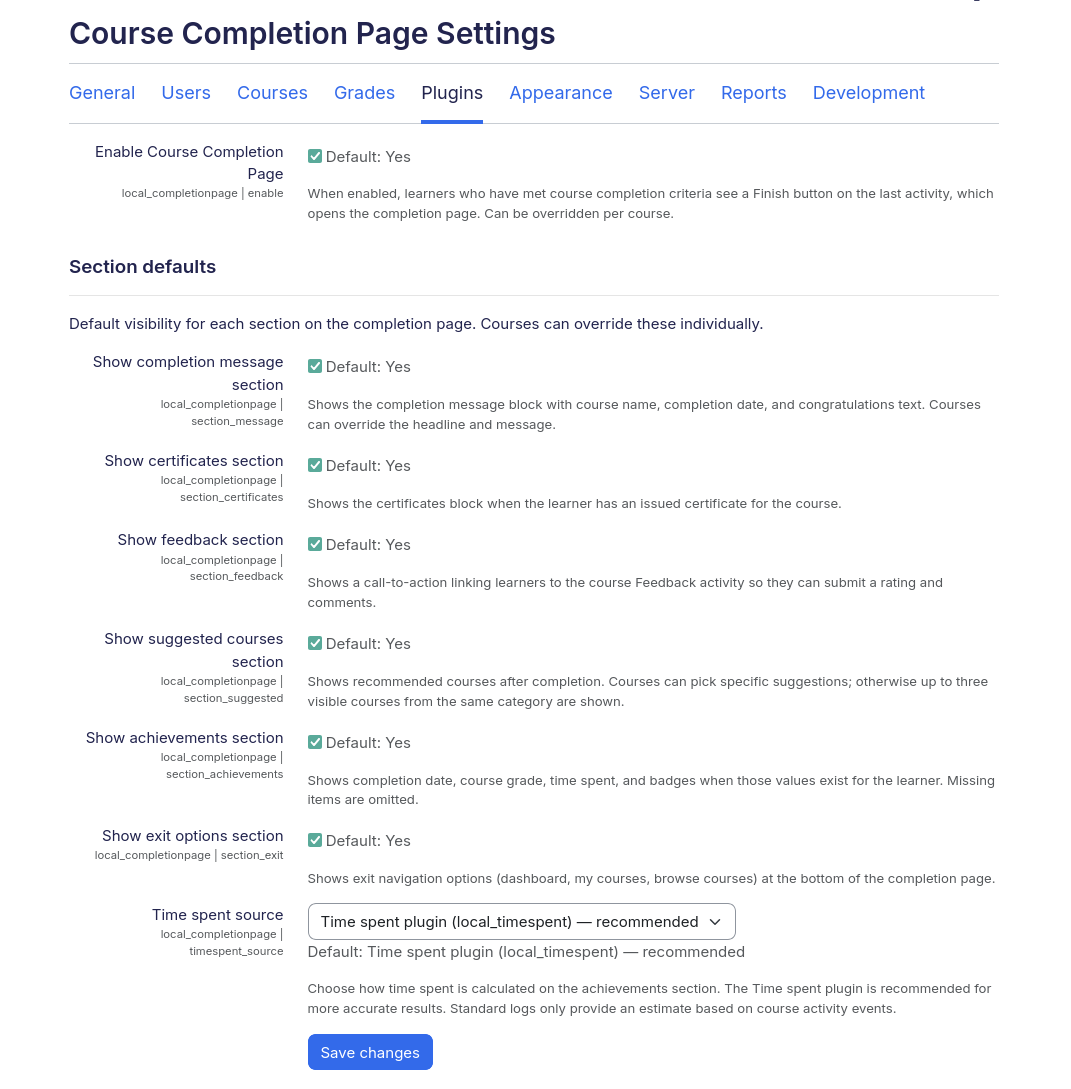
Access the global settings #
Go to: Site administration → Plugins → Local plugins → Course Completion Page Settings
The settings on this page apply as defaults for courses that use Use site default in their course-level configuration.
Enable Course Completion Page #
Enable Course Completion Page controls whether the feature is enabled by default across the site.
When enabled, Students who meet the configured Moodle course completion criteria can access the Course Completion Page through the course completion flow.
Teachers can override this setting for individual courses.
Section defaults #
The Section defaults area controls which parts of the Course Completion Page are enabled by default. Individual courses can override each setting.
- Show completion message section – Shows the course completion message, course name, and completion date.
- Show certificates section – Shows the certificate section when the Student has an issued Custom certificate
mod_customcert. - Show feedback section – Shows a link to the Moodle Feedback activity configured for the course.
- Show suggested courses section – Shows manually selected courses or, if none are selected, up to three visible courses from the same category.
- Show achievements section – Shows available completion details such as completion date, course grade, time spent, and earned badges.
- Show exit options section – Shows navigation links such as Dashboard, My courses, and Browse courses.
Time spent source #
The Time spent source setting controls how time spent is calculated in the achievements section.
- Time Spent plugin — recommended – Uses Time Spent
local_timespentfor session-based tracking and more accurate results. - Standard logs — estimate – Uses Moodle standard logs to estimate time spent from course activity events. This works without the Time Spent plugin, but the value should be treated as an estimate.
How global defaults work with course settings #
Global settings provide the default behavior for Course Completion Page, but they do not force every course to use the same configuration.
At course level, Teachers can normally choose:
- Use site default – Uses the value configured by the Administrator.
- Enabled – Enables the feature or section for that course regardless of the site default.
- Disabled – Disables the feature or section for that course regardless of the site default.
This allows Administrators to establish a consistent site-wide starting point while still allowing individual courses to use a different completion experience when needed.
Recommended setup #
For most sites, a practical starting configuration is to enable Course Completion Page and the main completion sections at site level.
Teachers can then disable sections that are not relevant to a particular course.
For example, a course without certificates can leave the certificate section enabled globally because the plugin automatically omits the section when no issued certificate is available.
Saving changes #
After changing the global settings, select Save changes.
The updated values become the defaults for courses using Use site default. Existing course-level overrides are not replaced.

