
Time Spent is a Moodle plugin that converts recorded course activity into session-based time information. It helps Administrators and other authorized staff understand how much active time Students have accumulated in their Moodle courses.
Instead of reviewing individual Moodle log entries, Time Spent groups related activity into sessions and presents the resulting time in easy-to-read reports.
What Time Spent Does #
Moodle records events as Students interact with courses, activities, resources, and other content. These events provide useful information about what happened, but reviewing individual log entries does not provide a simple view of how much time a Student spent actively using a course.
Time Spent processes this activity to provide:
- Total time online for each Student
- The end time of the Student’s latest recorded session
- Reports organized by course
- Reports organized by user
- Search and filtering within reports
- Exportable report data
The plugin works with Moodle activity records and does not require Students to start or stop a timer.
How Course Time Is Calculated #
Time Spent uses Moodle activity to identify periods of active course use. The basic process is:
- Course activity is recorded – As Students use Moodle, their interactions with courses, activities, resources, and other content generate activity records.
- Activity is grouped into sessions – Related activity is grouped into a session. If there is an extended period without activity, the current session ends. When the Student becomes active again, a new session begins.
- Session duration are combined – The duration of the Student’s recorded sessions are combined to produce the Total time online shown in the Time Spent report. This session-based approach prevents long periods of inactivity from automatically being treated as continuous course time.
Understanding a Session #
A session represents a period of related Moodle activity.
For example, a Student may:
- Open a course.
- View a resource.
- Complete an activity.
- Move to another course page.
When those interactions occur within the active session period, they form part of the same session.
If the Student stops generating Moodle activity for an extended period, that session ends. Further activity is treated as a new session.
This means simply leaving a Moodle page open does not necessarily result in the entire elapsed period being counted as active course time.
Time Spent Report Views #
Time Spent provides two ways to review the calculated information.
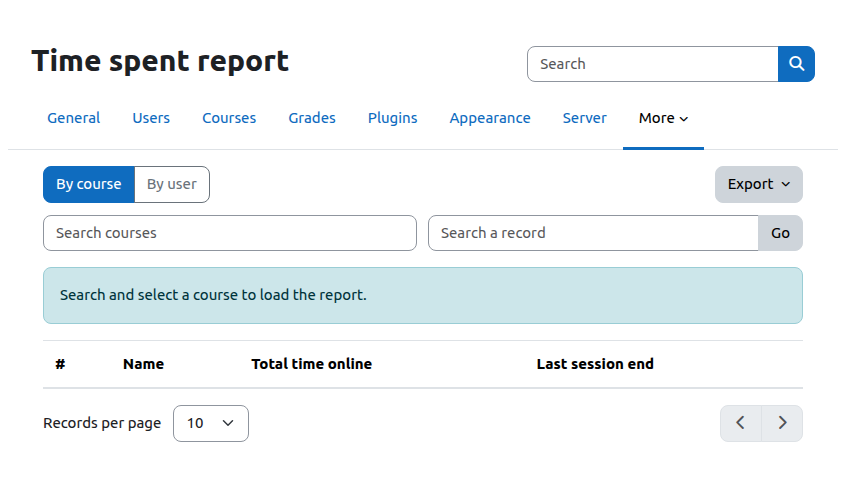
By course
The By course view starts with a course and shows the users associated with that course. For each user, the report displays:
- Name
- Total time online
- Last session end
This view is useful when Administrators or authorized staff want to review participation across a particular course.
By user
The By user view starts with an individual user and shows their time across courses. For each course, the report displays:
- Course
- Total time online
- Last session end
This view is useful when reviewing an individual Student’s activity across multiple courses.
What Does “Total Time Online” Mean? #
Total time online is the combined duration of the sessions calculated from the Student’s recorded Moodle activity for that course.
It should be understood as an estimate of active Moodle course time based on recorded interactions.
It is not simply:
- The time since the Student enrolled
- The time between login and logout
- The amount of time a browser tab remained open
- The total elapsed time between the first and last course activity
What Does “Last Session End” Mean? #
Last session end shows when the Student’s most recent calculated session ended for the relevant course.
In the By course report, it helps identify the most recent recorded session for each user in the selected course.
In the By user report, it shows the latest session end for that user within each listed course.
What Time Spent Does Not Measure #
Time Spent estimates active course time using recorded Moodle activity. It does not determine whether a Student was continuously:
- Looking at the screen
- Paying attention
- Reading the displayed content
- Understanding the material
- Actively learning during every second of a session
For this reason, Time Spent information is best used as an additional engagement indicator alongside Moodle information such as activity completion, course completion, grades, assessments, and other training records.
It should not be treated by itself as proof of attendance, attention, learning, or regulatory compliance.
No Additional Student Workflow #
Students do not need to interact directly with Time Spent. There is no:
- Manual timer to start or stop
- Separate tracking application
- Browser extension
- Additional Student reporting workflow
Students continue using their Moodle courses normally while Time Spent calculates session-based information from their recorded activity.
Who Can View Time Spent Reports? #
Time Spent report access is controlled through Moodle permissions.
Administrators can determine which trusted roles are permitted to access the report. Students do not automatically receive access to administrative Time Spent reports simply because their activity is included in the calculations.
Configuration and permissions are covered separately in Time Spent Settings and Permissions.
Using Time Spent With Other Moodle Plugins #
Calculated Time Spent information can also be used by other Moodle plugins and experiences.
For example, MooPlugins’ Course Completion Page can use Time Spent information to show course time alongside other completion information when the relevant plugins are installed.
This allows Time Spent to serve both as a reporting tool and as a source of course-time information for other Moodle functionality.
Requirements #
Time Spent requires:
- Moodle 4.5 or later
- Moodle’s standard log store to be available
- Appropriate Moodle permissions for staff who need access to reports
Additional configuration and permission details are covered in the administrator documentation.
Summary #
Time Spent turns Moodle activity records into session-based course time that is easier to understand and report.
Administrators and authorized staff can review the information from either direction:
- By course — select a course and review time for its users.
- By user — select a user and review their time across courses.
The resulting Total time online and Last session end provide useful context about course engagement without requiring Students to use a separate timer or tracking system.

