
Time Spent provides two report views so Administrators and other authorized staff can review calculated course time from either a course perspective or a user perspective.
Use By course when you want to see time information for users in a selected course. Use By user when you want to review one user’s time across multiple courses.
Opening the Time Spent Report #
Open the Time spent report from the area where the plugin report is available on your Moodle site. Normally it should be Site Administration → Reports → Time spent report
The report includes two tabs:
- By course
- By user
You can switch between these views depending on the information you want to review.
Viewing Reports By Course #
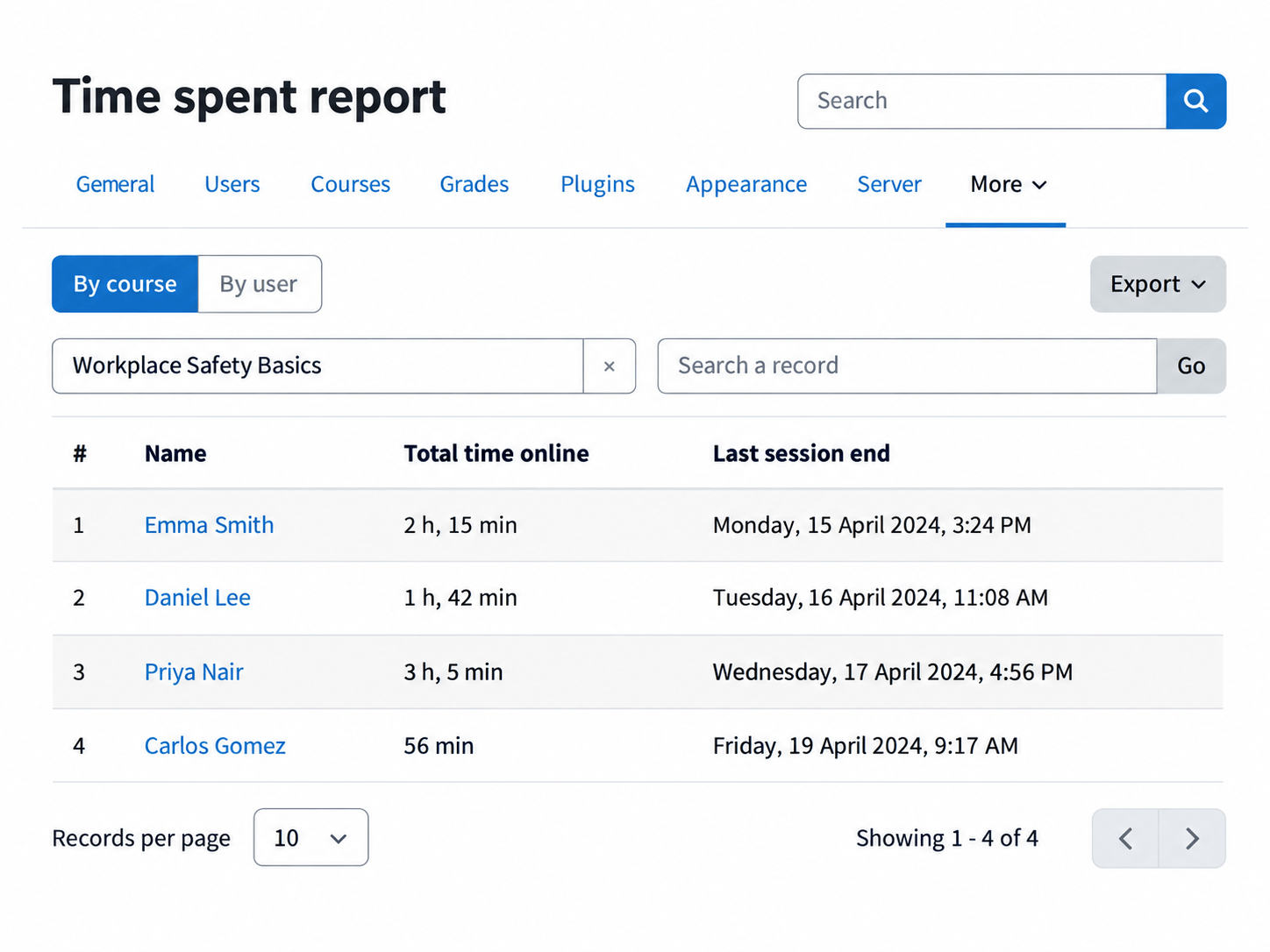
The By course view lets you select a course and review the time information for users associated with that course.
Select a course
Choose the course you want to review from the course selector. Once a course is selected, the report displays the available user records for that course.
Report columns
The By course report includes:
- Name — the user shown in the report
- Total time online — the calculated session-based time for that user in the selected course
- Last session end — the date and time when the user’s most recent calculated session ended
This view is useful when you want to compare activity time across multiple users within the same course.
Viewing Reports By User #
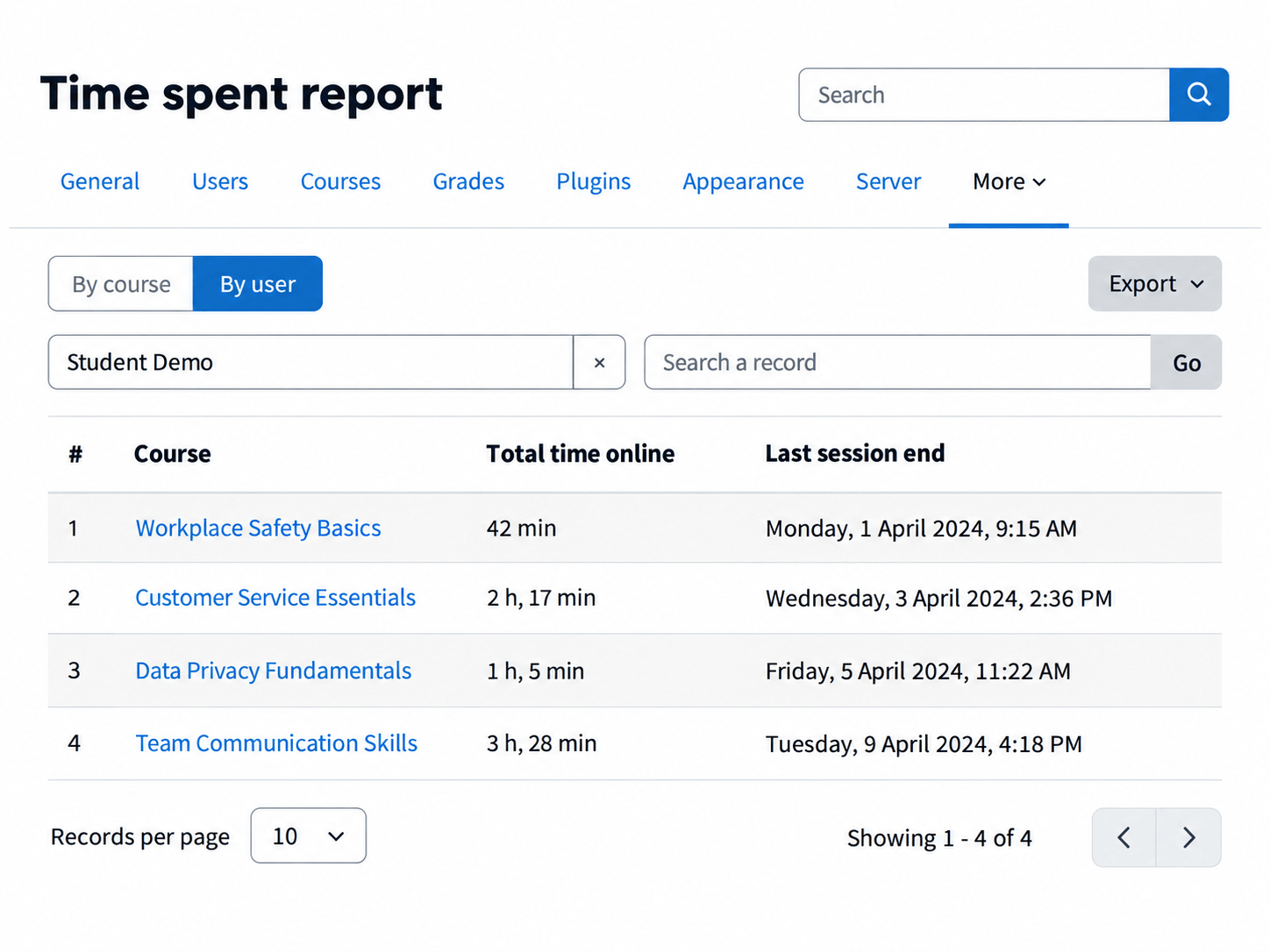
The By user view lets you select an individual user and review their calculated time across courses.
Select a user
Choose the user you want to review from the user selector. Once selected, the report displays the courses for which Time Spent information is available for that user.
Report columns
The By user report includes:
- Course — the course associated with the calculated time
- Total time online — the user’s calculated session-based time in that course
- Last session end — the date and time when the user’s most recent session for that course ended
This view is useful when reviewing an individual Student’s activity across several courses.
Searching Report Records #
Both report views include a search field.
Use the search field to narrow the currently displayed report records.
For example:
- In By course, you can search the displayed user records.
- In By user, you can search the displayed course records.
Enter the search term and select Go to apply it.
Changing the Selected Course or User #
The selected course or user appears above the report.
To review different data:
- choose another course in By course, or
- choose another user in By user
You can also clear the current selection before choosing another record.
Understanding Total Time Online #
Total time online is the combined duration of the sessions calculated from Moodle activity for the relevant user and course.
It is based on session activity rather than simply measuring the time between login and logout or the amount of time a browser page remains open.
For more information about the calculation, see Time Spent Overview.
Understanding Last Session End #
Last session end shows when the latest calculated session ended for that user and course.
In By course, this is shown for each listed user.
In By user, this is shown for each listed course.
This can help identify how recently the user was active in the relevant course.
Changing Records Per Page #
Use Records per page to control how many report rows are displayed at one time.
This is useful for courses or users with larger numbers of report records.
The currently displayed record range is shown at the bottom of the report.
Moving Between Report Pages #
When the report contains more records than can be displayed on one page, use the navigation controls at the bottom of the report to move between pages.
Pagination does not change the underlying report data. It only changes which records are currently visible.
Exporting the Report #
Use the Export menu to export the current Time Spent report. The export is based on the report view you are currently using:
- By course exports user time information for the selected course.
- By user exports course time information for the selected user.
The available export formats are Excel and CSV.
Choosing the Right Report View #
Use By course when your starting point is a course.
Examples include:
- reviewing participation in a training course
- comparing time across Students
- checking when users were most recently active
Use By user when your starting point is an individual user.
Examples include:
- reviewing one Student’s time across several courses
- checking which courses contain recorded time for that user
- comparing their total time between courses
Interpreting the Report Carefully #
Time Spent reports estimate active course time from recorded Moodle activity. The report does not prove that a Student was continuously attentive or actively learning for the entire calculated duration.
For that reason, Time Spent information is best interpreted alongside other Moodle data such as:
- activity completion
- course completion
- grades
- assessments
- feedback
- other training records
Access to Reports #
Only users with the appropriate Moodle permissions can access Time Spent reports. Administrators can control report access through the plugin’s Moodle capability settings.
For details, see Time Spent Settings and Permissions.
Summary #
The Time Spent report can be viewed in two ways:
- By course — select a course and review calculated time for its users.
- By user — select a user and review calculated time across their courses.
Both views support searching, pagination, records-per-page controls, and report export, making it easier to review course-time information without working directly with Moodle logs.

